 Fieldmark Documentation
Conditions on Sections and Fields
A form can include conditional display of both sections and fields using a rich conditional structure. Conditions are created and edited using the condition editor.
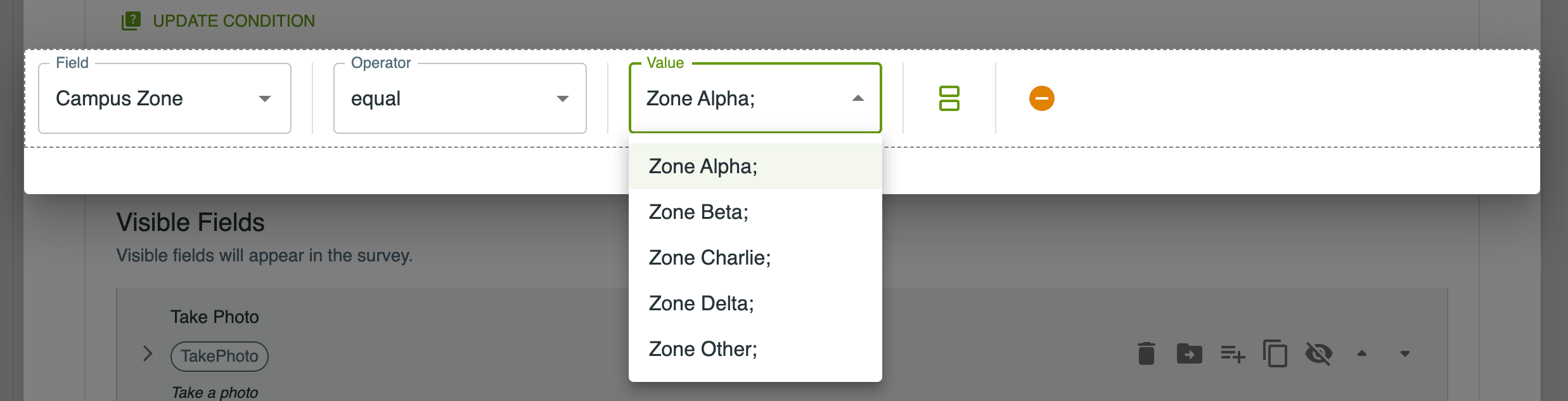
A condition on a section or field determines whether they will be shown in the form. Conditions are based on the values of one or more fields and are evaluated each time a value changes in the form. This means that when the user enters data in the form, some fields or sections may appear or disappear.
Simple Conditions
A simple condition compares the value of a field with the value entered in the condition. There are three parts to a simple condition: Field, Operator and Value.
The Field is the target field who’s value will be compared. In the condition editor you will see a drop-down list of all of the fields in the notebook. For a condition on a field, you won’t see the field itself.
For the Value you can generally enter a target value or select from a drop-down list of possible values.
The Operator is used to compare the field value and the condition value. The operators available depend on the type of the field.
For select and checkbox values you will see equal and not equal which compare the field value to one of the possible values in the field. For Select single fields you can also use is-one-of and is-not-one-of to compare against several options at once — for example, show a section when Rock Type is one of Igneous or Metamorphic.
For fields with a string value you will also see greater, less, contains and regex. The greater and less operators will compare the strings alphabetically (‘cat’ is less than ‘dog’). The regex operator allows you to write a Regular Expression to match the field value.
If the field is a MultiSelect field that can have more than one value selected, the operators will be contains-one-of, does-not-contain-any-of, contains-all-of and does-not-contain-all-of. Also here you will be able to select multiple values. So, for example, you could check whether the target field Pet Type contains one of Dog or Cat, or that it does not contain any of Hamster, Gerbil or Rat.
Operator Reference
The condition builder offers operators organised into three groups.
Comparison Operators
For comparing a field’s value against a single value.
Operator |
What It Checks |
|---|---|
equal |
Field value matches the specified value exactly. |
not-equal |
Field value does not match the specified value. |
is-one-of |
Field value is any of the specified options. |
is-not-one-of |
Field value is none of the specified options. |
greater |
Field value is greater than the specified number. |
less |
Field value is less than the specified number. |
contains |
Field value contains the specified substring. |
regex |
Field value matches a regex pattern (advanced). |
contains |
The selected list includes the specified value. |
contains-one-of |
The field value includes at least one of the specified values. |
does-not-contain-any-of |
The field value includes none of the specified values. |
contains-all-of |
The field value includes every one of the specified values. |
does-not-contain-all-of |
The field value does not contain all of the specified values. |
Complex Conditions
The condition editor allows you to combine simple conditions into more complex tests using boolean connectors.
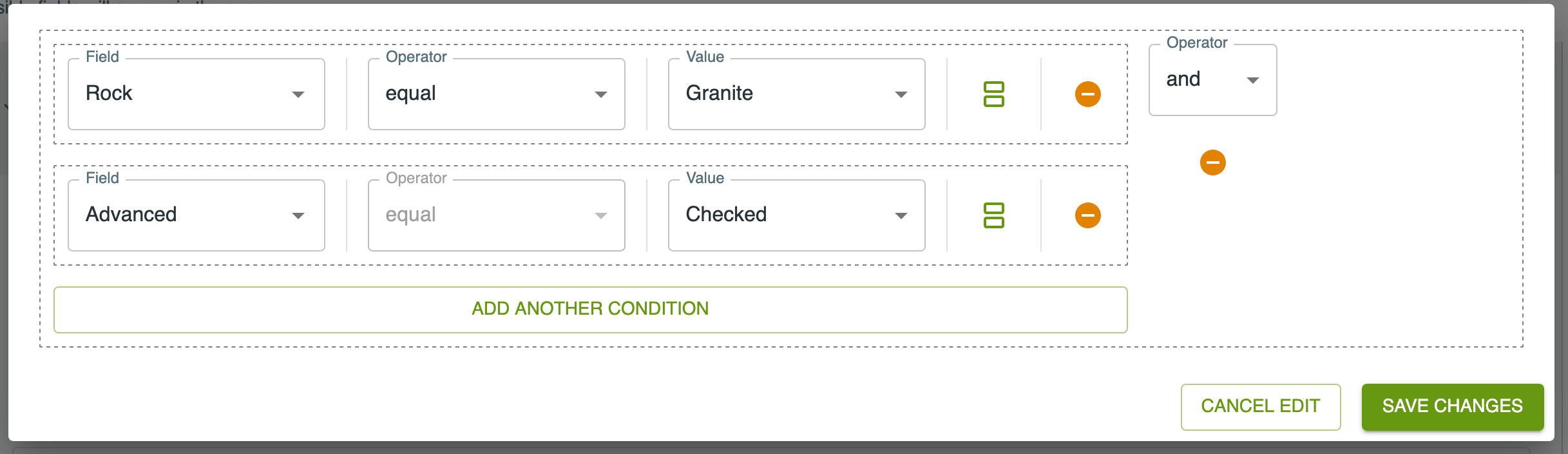
In this example there are two conditions on fields that are combined with the ‘and’ operator, so the condition will hold if both simple conditions hold. You can also use the ‘or’ operator to combine conditions.
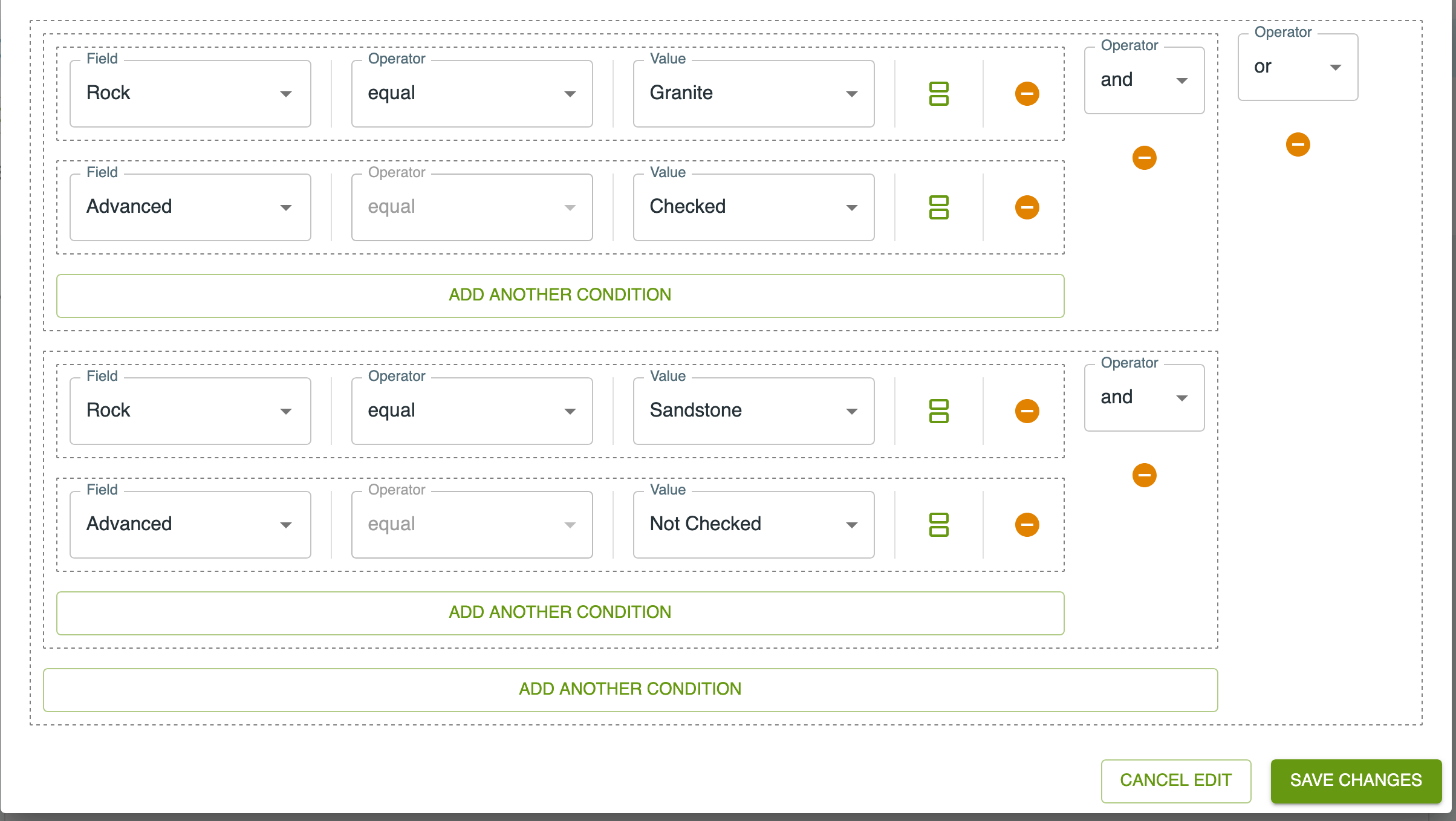
Complex conditions can be as complex as you need them to be with nested boolean conditions. In the example below, we combine two ‘and’ conditions with an ‘or’: Either ‘Rock’ is ‘Granite’ and ‘Advanced’ is checked or ‘Rock’ is ‘Sandstone’ and ‘Advanced’ is not checked.
Editing Complex Conditions
Editing complex conditions can be a little confusing. There are two controls on each condition: the split control (two small rectangles) and the remove control (amber circle with a bar).
The split control can be used to turn a simple condition into a boolean condition. Clicking this control will create a second simple condition and use the ‘and’ operator by default which you can change to ‘or’ if you need to.
The removal control will remove either the simple condition or complex condition it refers to.
The ‘Add Another Condition’ button below a complex condition will add a new clause into an existing ‘or’ or ‘and’ condition.
Referencing Parent and Linked Record Values
Conditions can compare against values from outside the current record, using the same references available in Templated Strings and computed fields.
When the form is a child of another form, a condition can test a field
on the record’s parent. These appear in the condition’s field picker as
Parent › Field Name, and are stored using the _PARENT. prefix, e.g.
_PARENT.Site-Name.
When the form holds a Related Records field with a Linked relation that allows only a single link, a condition can test a field on the linked record. These appear in the field picker as Link Field Name › Field Name.
All operators work with these references exactly as they do with the form’s own fields. When the referenced value is not available — the record has no parent, no record is linked, or the field is empty — the condition behaves as it would for an empty local field: for example, equal does not match and not-equal does.
While a record is being edited, conditions re-evaluate automatically if the linked record is changed.
Referencing Notebook Metadata Values
Conditions can also test a value from the notebook’s own metadata: the custom fields set on the Info panel in the Notebook Editor. These apply across every record, so one design can adapt its forms to per-project settings without editing the forms themselves — for example, a custom field listing the procedures in use, with each procedure’s fields shown only when it is listed.
Custom metadata fields appear in the condition’s field picker as
Notebook › Field Name, and are stored using the _METADATA. prefix,
e.g. _METADATA.procedures. Every metadata value is text, so the text
operators apply; contains checks for a substring, which covers “is
this item listed” for comma-separated values.
If the notebook has no custom field with that name, the condition behaves as it would for an empty local field. A custom field that a condition references cannot be removed from the Info panel until the condition is changed.