 Fieldmark Documentation
Select Field
How to add and configure a Select Field in the Notebook Editor.
Important
Select Field is deprecated for new form design. It remains fully supported for existing notebooks and existing Select fields are not removed. For new forms, prefer Select one option, which presents the choices as a visible list rather than a dropdown.
What This Field Does
A Select Field lets users pick one option from a dropdown list. It is the standard choice for single-selection questions — for example, site types, artefact categories, condition assessments, geological classifications, or archaeological periods. The dropdown conserves screen space while keeping the full list of options accessible.
Adding the Field
New Select Field fields are not available from the add-field chooser. Select Field remains supported for legacy notebooks where it already exists. For new forms, add Select one option instead.
Note: You can still edit Select Field settings for existing fields.
Configuring the Field
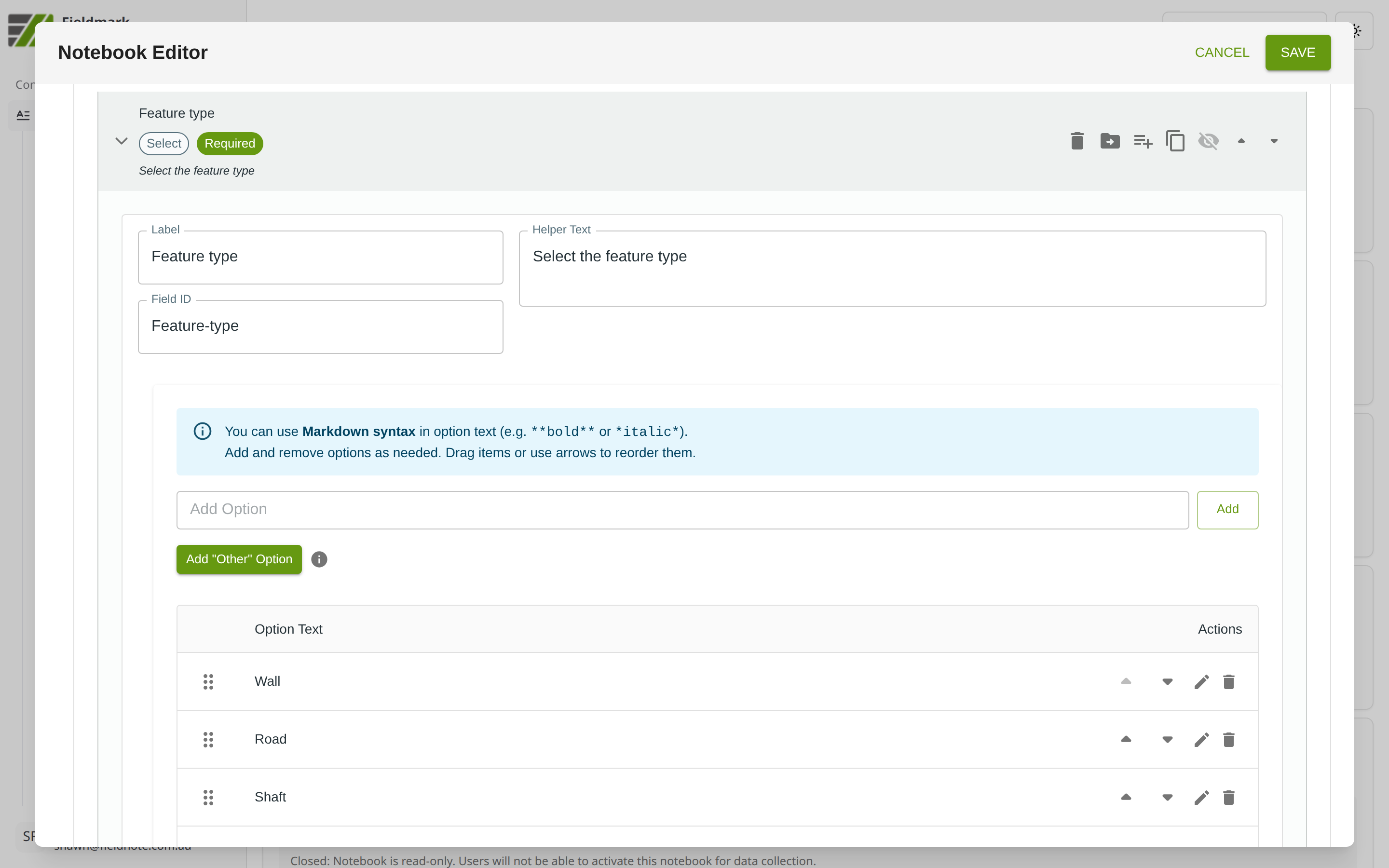
Click the field’s grey header bar to expand it and see its settings. For an overview of the settings shared by all fields — including Label, Helper Text, Field ID, and the field toolbar — see Field Identity and Field Toolbar.
Give the field a meaningful Label, review the auto-populated Field ID, and add any desired Helper Text.
Select-Specific Settings
The Select Field’s key setting is the options list — the choices available in the dropdown. Below the Markdown syntax info banner, you will find the Add Option input, the Add “Other” Option button, and a table listing all current options.
Setting |
What It Does |
|---|---|
Options list |
The choices that appear in the dropdown. Each option is shown as a row in the table below. |
Add “Other” Option |
Adds a special “Other” choice that prompts the collector to type a custom value when selected. |
Note: As per the banner, you can use Markdown syntax in option text (e.g., **bold** or *italic*) to add emphasis or formatting to individual options.
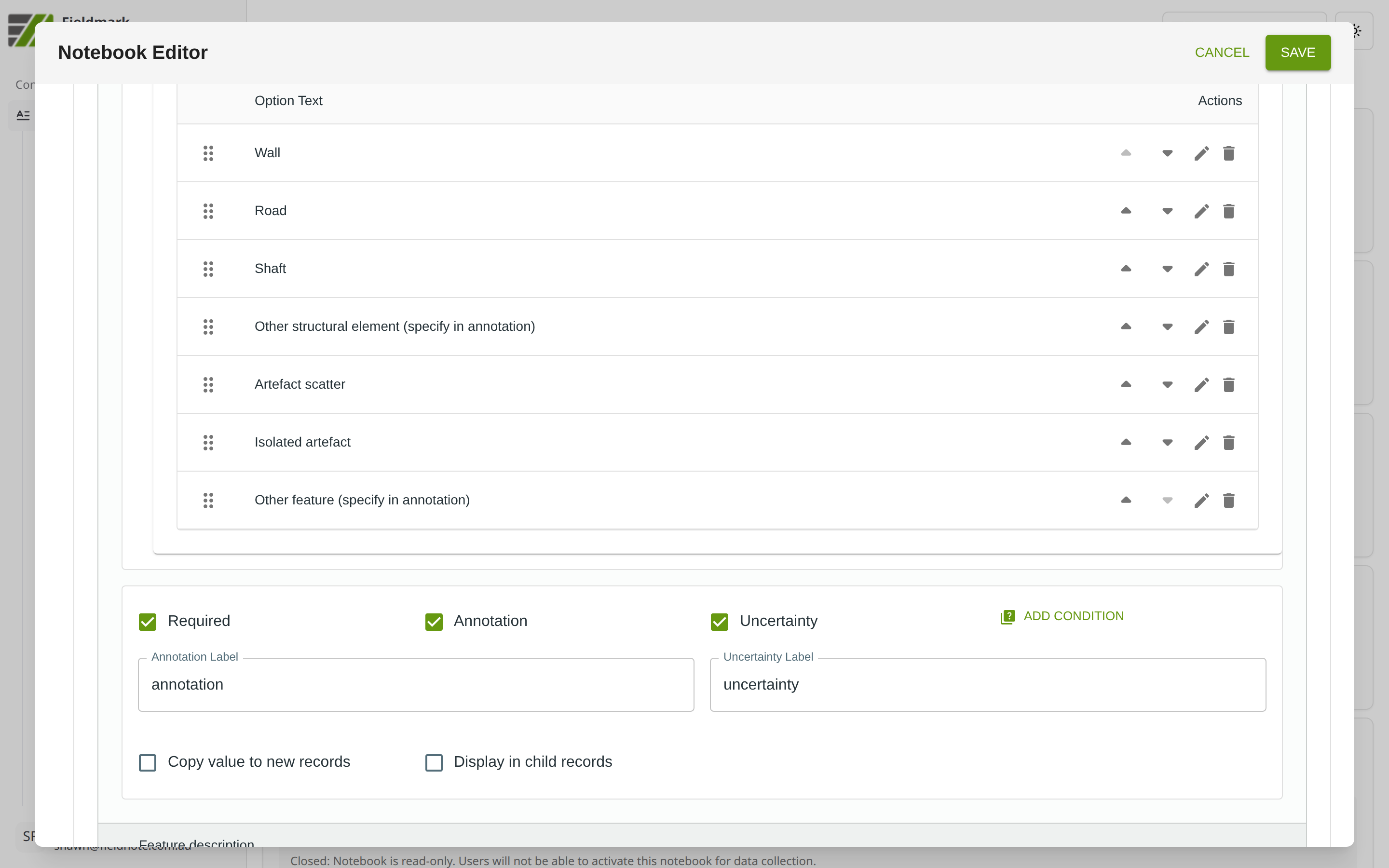
Managing options:
To add an option: Type the option text in the Add Option input field and click Add (or press Enter).
To edit an option: Click the pencil icon in the option’s Actions column.
To reorder options: Drag the six-dot handle on the left of the option, or use the up/down arrow buttons in the Actions column.
To delete an option: Click the trash icon in the option’s Actions column.
The display label and stored value are always the same — what your users see is exactly what appears in exported data. There are no hidden codes. To allow users to leave the field blank, include an empty option such as “– None –” at the top of your list.
Tips
Choose the right selection field for your list size. Select Field is ideal for lists of 8–20 options. For shorter lists (2–7 items), consider ‘Select one option’ for more rapid entry, at the cost of more screen real estate. For very long (>20 items) or intrinsically hierarchical lists, consider Select Field (Hierarchical).
Include a “– None –” option if collectors need to clear a selection — there is no built-in deselect button. Without a blank option, once a choice is made it cannot be undone.
Enable Annotation and Uncertainty for fields where collectors might need to qualify their choice, such as noting “tentative identification” or “poor visibility conditions”. Annotation, combined with Uncertainty, is especially valuable for classification fields where confidence varies.
Migration Guidance
Existing Select Field fields can be left in place and will continue to work.
For new templates, replace Select Field with Select one option so that all choices are visible without an extra tap.
For very long lists (>20 items) or hierarchical structures, use Select Field (Hierarchical) instead.