 Fieldmark Documentation
FAIMS Text Field
How to add and configure a FAIMS Text Field in the Notebook Editor.
Important
FAIMS Text Field is deprecated as a separate field type for new form design. It remains fully supported for existing notebooks and existing fields are not removed. For new forms, use the unified Text field entry in the add-field chooser — it covers both single-line (default) and multi-line text via its settings.
What This Field Does
A FAIMS Text Field provides a single-line input for brief, unconstrained text. It is the primary choice for codes, identifiers, short labels, and other short-form text — typically accommodating around 50 characters.
Adding the Field
New FAIMS Text Field fields are not available from the add-field chooser. The field type remains supported for legacy notebooks where it already exists. For new forms, add Text field instead — it produces a single-line input by default.
Note: You can still edit FAIMS Text Field settings for existing fields.
Configuring the Field
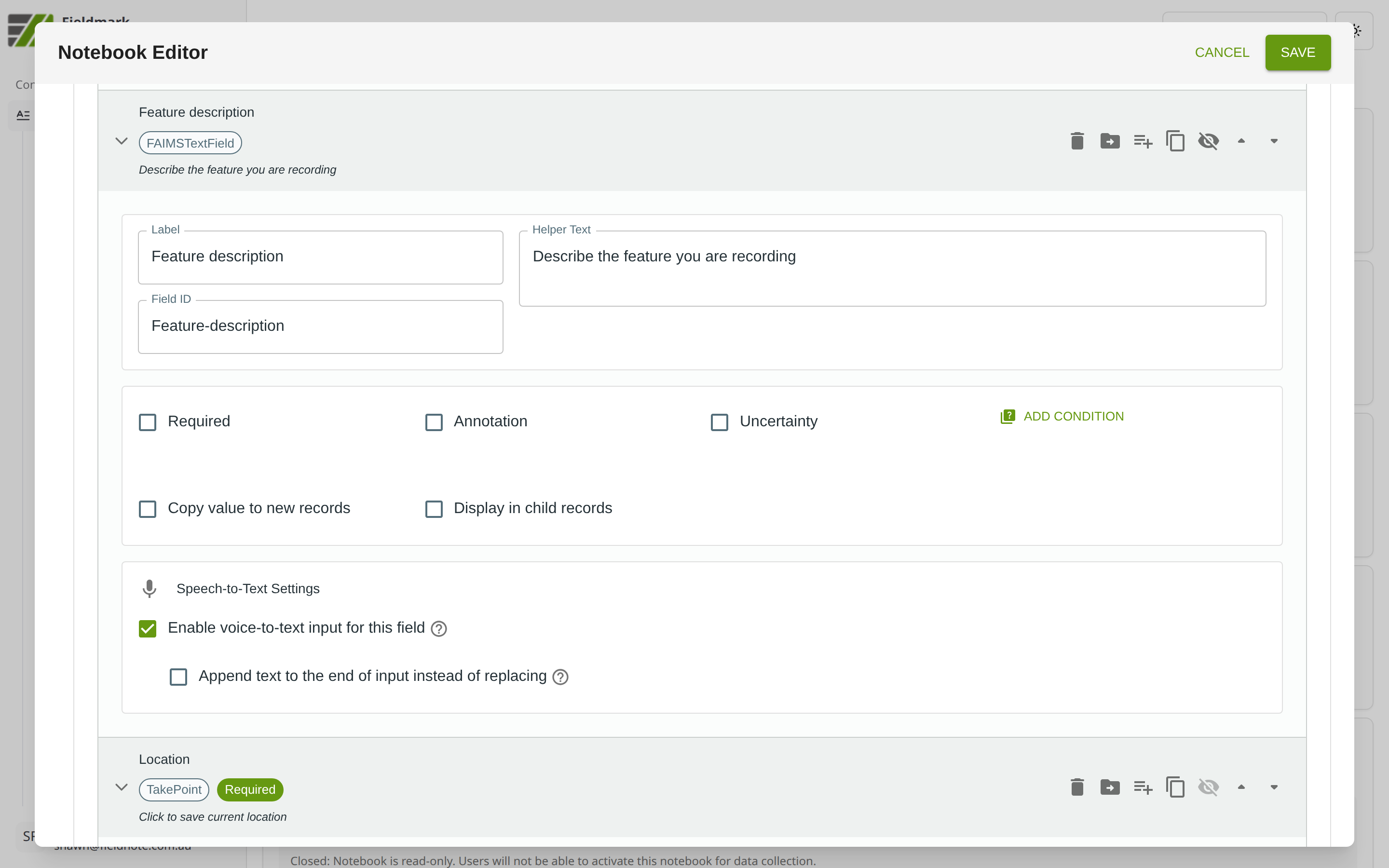
Click the field’s grey header bar to expand it and see its settings. For an overview of the settings shared by all fields — including Label, Helper Text, Field ID, and the field toolbar — see Field Identity and Field Toolbar.
Give the field a meaningful Label, review the auto-populated Field ID, and add any desired Helper Text.
Tips
Use with caution. In many — if not most — cases, fields with controlled lists (e.g., Choice fields) will produce more consistent data with fewer errors. Fields with pre-populated options are also faster to complete in the field.
Best for entries under about 50 characters. For longer text (descriptions, narratives), use Multi-line Text Field instead.
Enable Speech-to-Text for fields where collectors may be working hands-free or in wet/dirty conditions.
Review the Field ID before saving — it is auto-generated from the Label. Once records exist, changing the Field ID can break data continuity.
Use for metadata. One valuable use of free-text fields is to capture record-level metadata — information about the data collected in the record, such as unexpected environmental conditions or unanticipated challenges. Such use complements Annotations (field-level metadata) and Notebook Details (project-level metadata).
Migration Guidance
Existing FAIMS Text Field fields can be left in place and will continue to work.
For new templates, use the unified Text field chooser entry. Leave the multi-line option off for short single-line text.
The same Text field entry also replaces Multi-line Text Field; enable the multi-line option (and set Rows) when you need extended narrative.