 Fieldmark Documentation
Parent Field Value
The Parent Field Value field displays a value from a record’s parent (read-only) while a collector is working in a child record. It provides context from the parent — such as which site a building belongs to — without requiring navigation back to the parent record. Collectors cannot edit the value.
The displayed value is resolved live from the parent record each time the child is viewed or edited, so later changes to the parent are always reflected on screen. The resolved value is also stored in the child record when it is saved, so it appears in exported data; the stored value reflects the parent as of the child’s last save.
Parent values can also be used inside a child’s
Templated Strings and computed
fields (number,
text) using the _PARENT.
prefix — see those pages for the syntax.
Adding the Field
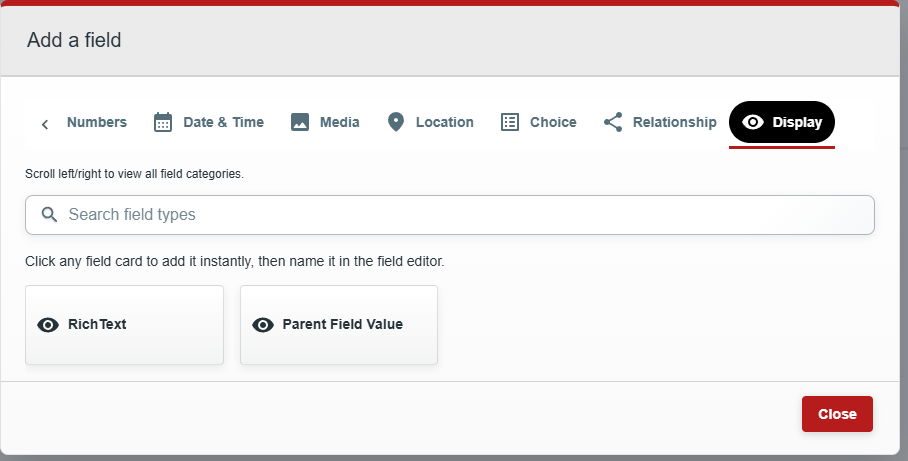
In the Notebook Editor, open the form that will act as the child record, select Add a Field, and navigate to the DISPLAY tab. Select Parent Field Value.
Give the field a meaningful Label, review the auto-populated Field ID, and add any desired Helper Text.
Configuration
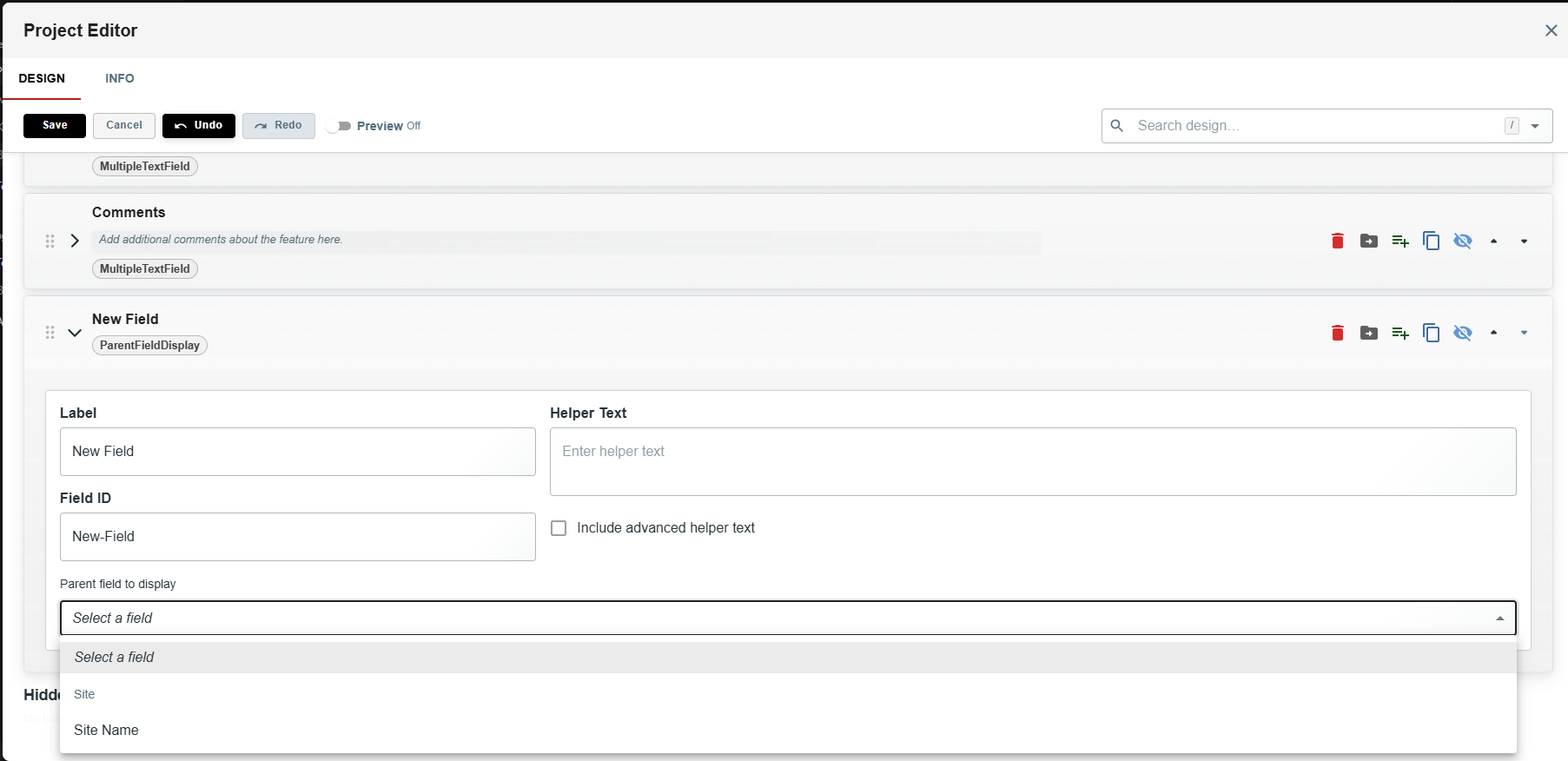
The field’s key setting is Parent field to display, which selects the field in the parent form whose value is shown.
Setting |
What It Does |
|---|---|
Parent field to display |
A list of fields drawn from every form that can act as a parent of this form, grouped by form name. Choose the field whose value to show. |
A form can act as a parent of this form when it contains a Related Records field with a Child relationship targeting this form. If no such form exists yet, the editor shows a notice instead of the list — add the relationship field to the parent form first.
Because this field is display-only, the shared Required, Conditions, Annotation, and Uncertainty options do not apply and are not shown.
Behaviour During Data Collection
When a collector creates a child record from a parent, the parent’s value is shown immediately, and it remains visible when the record is later edited or viewed.
If the parent record’s value changes, the child shows the updated value the next time it is opened, and the stored copy is refreshed when the child is next saved.
If the record has no parent (for example, it was created directly from the record list), or the parent’s field is empty, a dash is shown instead of a value.
A record can have parents of more than one form. The value is taken from the first parent whose form contains the configured field; other parents are ignored.
Tips
Use it for orientation, not data entry. Showing the parent’s identifying field (such as a site name or grid square) at the top of the child form helps collectors confirm they are working in the right place.
Values a collector must enter or adjust belong in the child’s own input fields — this field only mirrors the parent and cannot be edited on the child.