 Fieldmark Documentation
Templated String
How to add and configure a Templated String field in the Notebook Editor.
What This Field Does
A Templated String concatenates text values from other fields using templates. It is required for Human-Readable Identifiers (HRIDs) — every notebook should have at least one Templated String configured as the record identifier to avoid fallback to an opaque string of characters. The generated value is read-only for data collectors; they see the result but cannot edit it.
Adding the Field
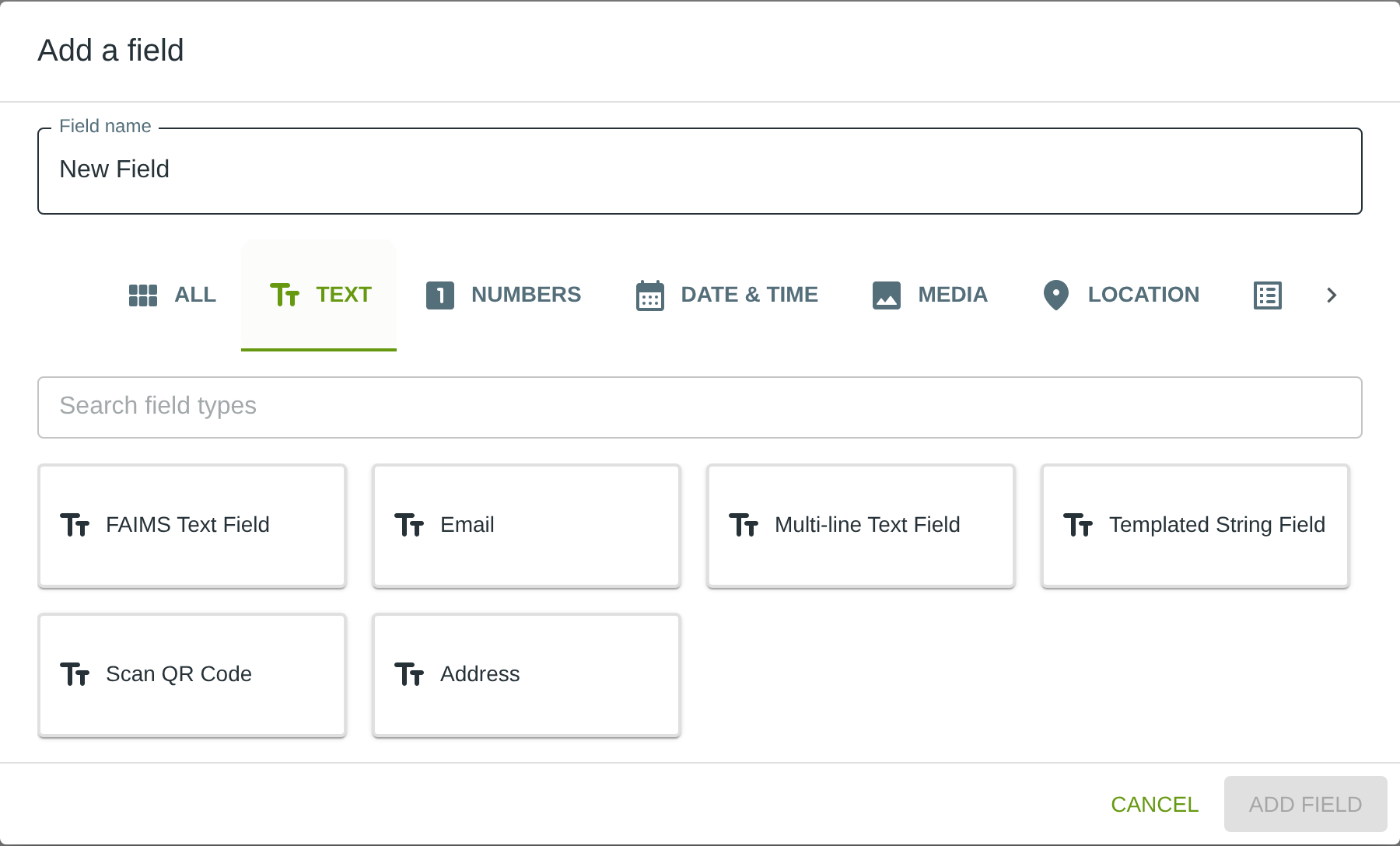
To add this field, open the ADD A FIELD dialog, navigate to the TEXT tab, and click the Templated String card. Then click the ADD FIELD button in the lower right.
Configuring the Field
Click the field’s grey header bar to expand it and see its settings. For an overview of the settings shared by all fields — including Label, Helper Text, Field ID, and the field toolbar — see Field Identity and Field Toolbar.
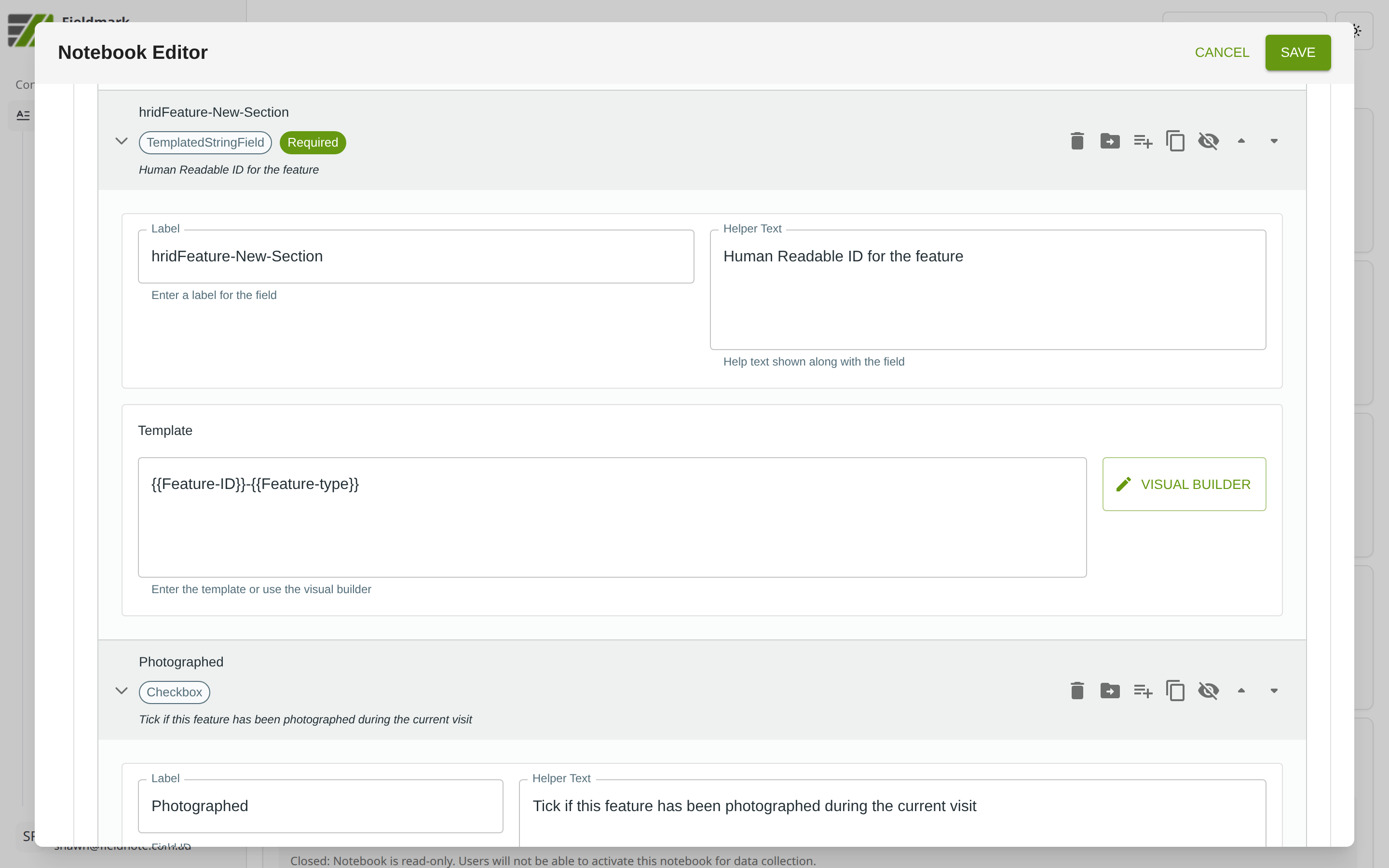
Give the field a meaningful Label, review the auto-populated Field ID, and add any desired Helper Text.
Templated String-Specific Settings
The Templated String’s key feature is the Template text area, which defines the generated value using field variable references. A VISUAL BUILDER button opens an interactive builder for constructing templates without typing the syntax manually.
Setting |
What It Does |
|---|---|
Template |
A text area where you define the template using literal text and field variable references in double-brace syntax (e.g., |
VISUAL BUILDER |
Opens an interactive builder for constructing the template by selecting fields and adding text segments without manual syntax. |
The template supports:
Variable substitution — inserts the value of another field (e.g., a site code or date field).
Conditional sections — includes text only when a referenced field has a value.
System variables — inserts values such as the record creator or creation time.
Referenced fields are normally in the same form as the Templated String, but fields from the record’s parent can also be referenced (see below). A Templated String cannot reference another Templated String in the same form.
Referencing Parent Record Values
When the form is a child of another form (linked through a
Child-relation Related Records field), the template can reference
fields on the record’s parent using the _PARENT. prefix, e.g.
{{_PARENT.Site-Name}}-{{Feature-type}}. The Visual Builder lists the
available parent fields with a “Parent:” prefix.
Unlike same-form references, a parent reference may point at the parent’s own Templated Strings and computed fields — so a child’s identifier can be built from the parent’s identifier.
If a record has no parent (for example, it was created directly from the record list), the parent reference renders as empty text and the rest of the template is unaffected.
The same reference can be used in field and section conditions.
Referencing Linked Record Values
When the form holds a
Related Records field with
a Linked relation that allows only a single link, the template can
reference fields on the linked record by joining the two Field IDs with
a dot: {{Link-Field-ID.Field-ID}}. For example, with a Related
Records field Core-Calibration linking one Calibration record,
{{Core-Calibration.Cutter-ID}}-{{Wet-Mass-g}} includes the linked
record’s cutter ID. The Visual Builder lists the available linked
record fields as “Link field > Field”.
As with parent references, a linked record reference may point at the linked record’s Templated Strings and computed fields, whose stored values are used.
If nothing is linked, the reference renders as empty text. The values
update while editing whenever the link is changed, and otherwise
re-derive when the record is opened or saved — so a change to the
linked record itself appears the next time this record is opened.
Fields that allow multiple links, and Child-relation fields, cannot be
referenced this way (children reference their parent with _PARENT.).
The generated value is stored when the record is saved and updates whenever the record is next opened or saved. If the parent is edited in the meantime, the stored value reflects the parent as of the record’s last save — the same behaviour as the Parent Field Value field.
The same reference can be used in field and section conditions.
Referencing Notebook Metadata Values
The template can include a value from the notebook’s custom metadata
(the custom fields on the Info panel in the Notebook Editor) using
the _METADATA. prefix: {{_METADATA.Field-Name}}. For example, with a
custom field season set to 2026A, {{_METADATA.season}}-{{Site-Code}}
begins every identifier with the season. The Visual Builder lists custom
fields as “Notebook: Field Name”.
Metadata applies across every record and cannot change while a record is open, so the reference simply renders the current value; if the notebook has no custom field with that name, it renders as empty text. A custom field that a template references cannot be removed from the Info panel until the template is changed.
Tips
Every form needs at least one Templated String configured as the Human-Readable Identifier (HRID). Without it, records get opaque identifiers like “rec-5f8a9b3c” that are impossible to reference in conversation or field notes.
Combine meaningful components for readable identifiers — for example, site code + year + type + sequence (e.g., “PPAP-2026-CONTEXT-045”). This makes records self-describing.
Templated Strings are read-only for data collectors. They see the generated identifier but cannot edit it, preventing accidental corruption of the naming scheme.