 Fieldmark Documentation
Audio Recording
How to add and configure an Audio Recording field in the Notebook Editor.
What This Field Does
An Audio Recording field allows capture of an audio recording using the device microphone. The audio recording will be saved as an attachment on the record associated with the named field. The format of the recording is device dependent. Use it to capture audio commentary from the user or interview audio between the user and a third party.
Note that while recording is taking place, the recording controls are shown at the bottom of the screen to pause, stop or cancel the recording. During recording, the user cannot navigate away from the current form page. They can continue to interact with the form on that page however. They cannot navigate to another section of the form if the form is configured to use [tabs for each section].
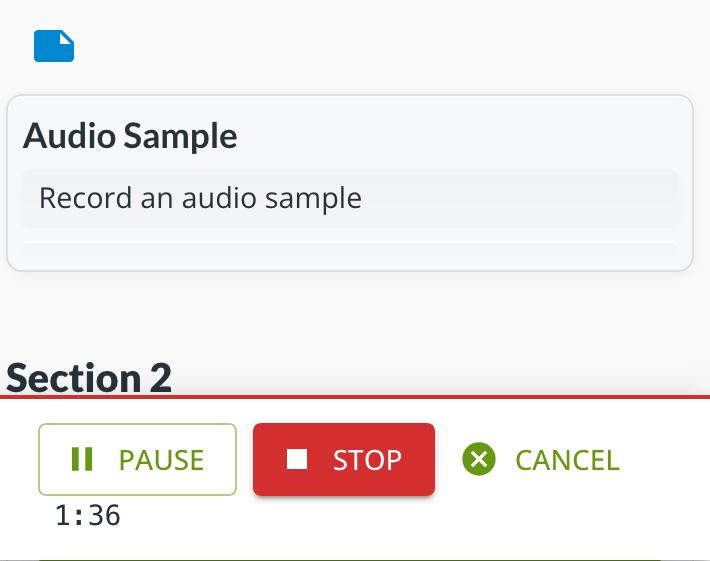
If you want to capture a recording while filling out a form, you should put all of your form fields into one section or configure the form to use inline sections in the Form Settings.
Adding the Field
To add this field, open the ADD A FIELD dialog, navigate to the MEDIA tab, and click the Audio Recording card. Then click the ADD FIELD button in the lower right.
Configuring the Field
Click the field’s grey header bar to expand it and see its settings. For an overview of the settings shared by all fields — including Label, Helper Text, Field ID, and the field toolbar — see Field Identity and Field Toolbar.
Give the field a meaningful Label, review the auto-populated Field ID, and add any desired Helper Text.