 Fieldmark Documentation
Multi-line Text Field
How to add and configure a Multi-line Text Field in the Notebook Editor.
Important
Multi-line Text Field is deprecated as a separate field type for new form design. It remains fully supported for existing notebooks and existing fields are not removed. For new forms, use the unified Text field entry in the add-field chooser and enable the multi-line option (with the desired number of Rows).
What This Field Does
A Multiline Text Field provides an extended text area for narrative content, detailed observations, and descriptive passages. Unlike the single-line FAIMS Text Field, it supports multiple lines with internal scrolling, making it suitable for entries that commonly exceed a sentence or two — such as context descriptions, condition assessments, and interpretative notes.
Adding the Field
New Multi-line Text Field fields are not available from the add-field chooser. The field type remains supported for legacy notebooks where it already exists. For new forms, add Text field instead and enable the multi-line option to get the same behaviour, then set Rows to display as needed.
Note: You can still edit Multi-line Text Field settings for existing fields.
Configuring the Field
Click the field’s grey header bar to expand it and see its settings. For an overview of the settings shared by all fields — including Label, Helper Text, Field ID, and the field toolbar — see Field Identity and Field Toolbar.
Give the field a meaningful Label, review the auto-populated Field ID, and add any desired Helper Text.
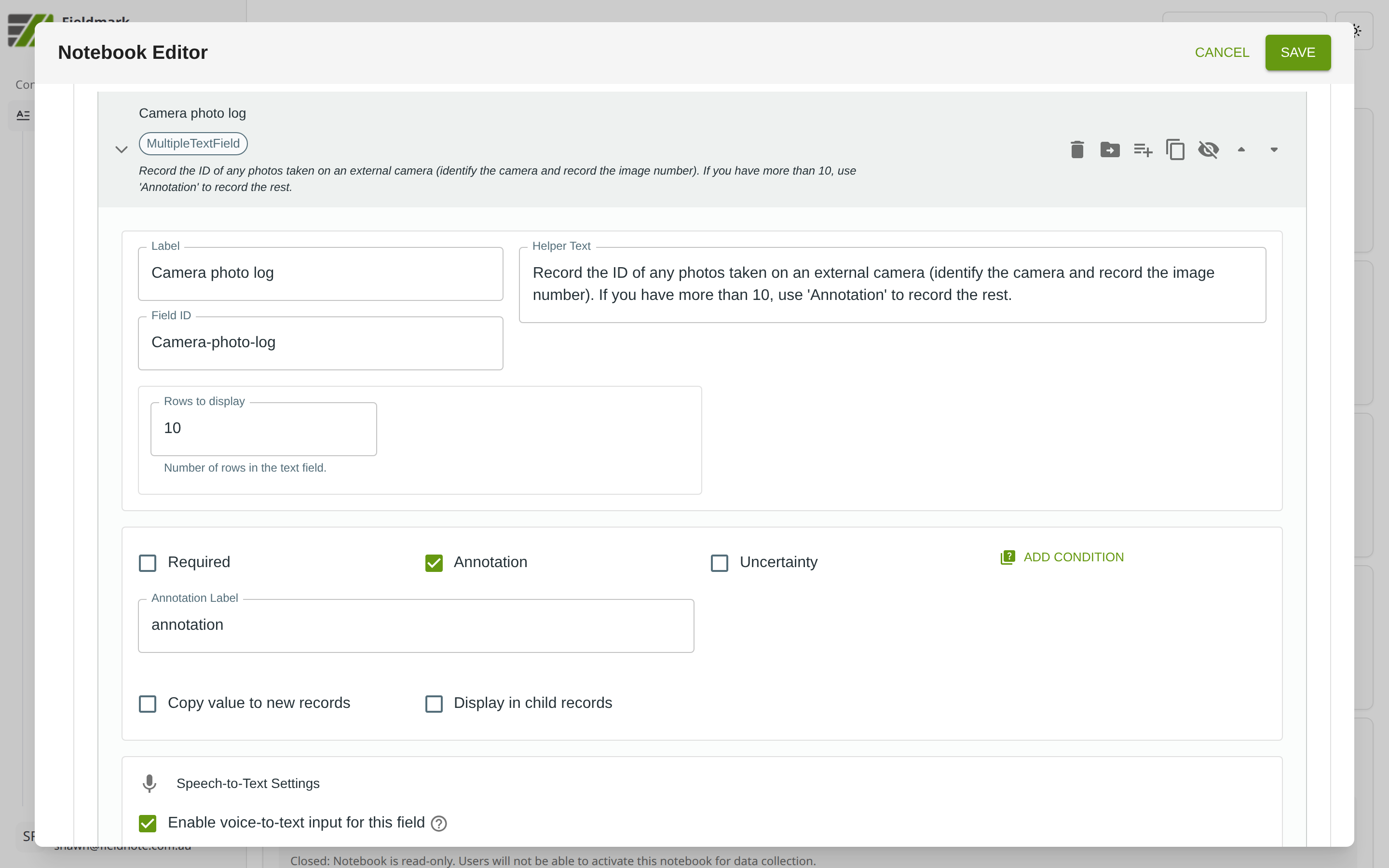
Multiline Text Field-Specific Settings
Setting |
What It Does |
|---|---|
Rows to display |
The number of visible text rows in the field. Controls the initial height of the text area — collectors can still type beyond this limit and scroll within the field. |
Tips
Designed for extended narrative. Use this field for context descriptions, condition assessments, and detailed observations. For short entries under about 50 characters (codes, identifiers, brief labels), use FAIMS Text Field instead.
On mobile, the touch keyboard can obscure the text area. Place sections with multiline fields towards the end of a form so collectors can review earlier entries before writing descriptions.
Content is plain text only — the field preserves line breaks, tabs, and spaces, but no rich text formatting is available. The Enter key creates new lines rather than submitting the form.
Enable Annotation for multiline fields where the main text might need a qualifying note (e.g., “artefact analysis based on in-field observation only”).
Migration Guidance
Existing Multi-line Text Field fields can be left in place and will continue to work.
For new templates, use the unified Text field chooser entry with the multi-line option enabled.
The same Text field entry also replaces FAIMS Text Field; leave the multi-line option off for short single-line entries.